See the people behind the performance, in one place.
A short, guided walkthrough of how to sign in, read the dashboard, manage your users and use Co-Pilot to turn personality, motivation and cognitive load into practical decisions.
01Logging in
Once you receive your email with login credentials, enter them on the login screen. You will be prompted to reset your password before signing in to the Hub dashboard.
What to expect: the email contains your username and a temporary password. On first sign-in, the Hub will guide you through setting a permanent password before you reach the main dashboard.

Heads up
If the email is not visible in your inbox, check your spam or junk folder. Email security settings sometimes filter it there.
Cognitive Load Overview
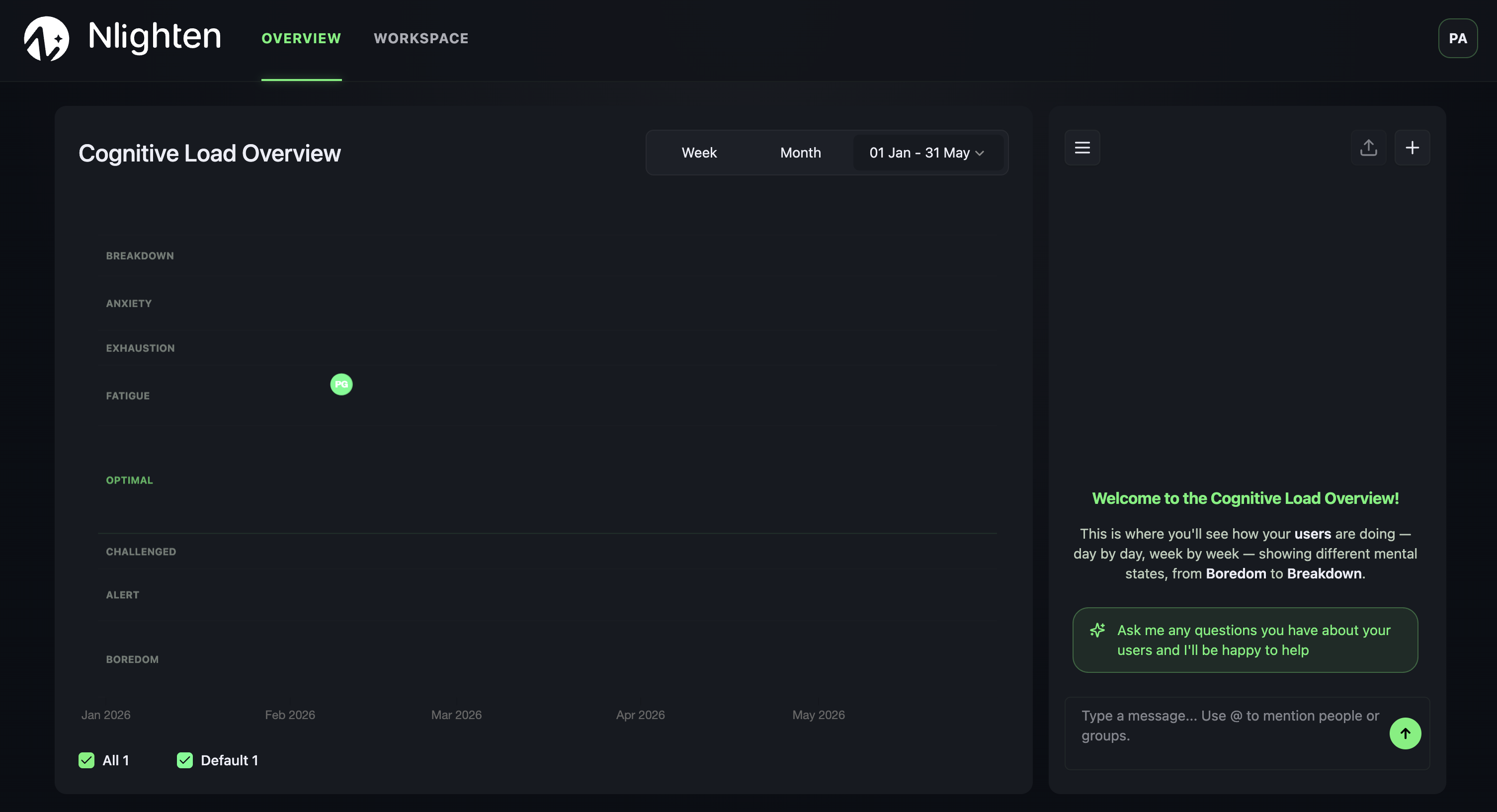
A real-time view of how your users are doing and the cognitive state they are operating in. As users interact with their agent, an initial bubble appears for each one to reflect their current status.
On the right of the page, the Co-Pilot panel lets you ask questions about any user. Type @ followed by the user's name to access user-specific insights. You can also hover over a user's bubble and click it to view their personalised data.
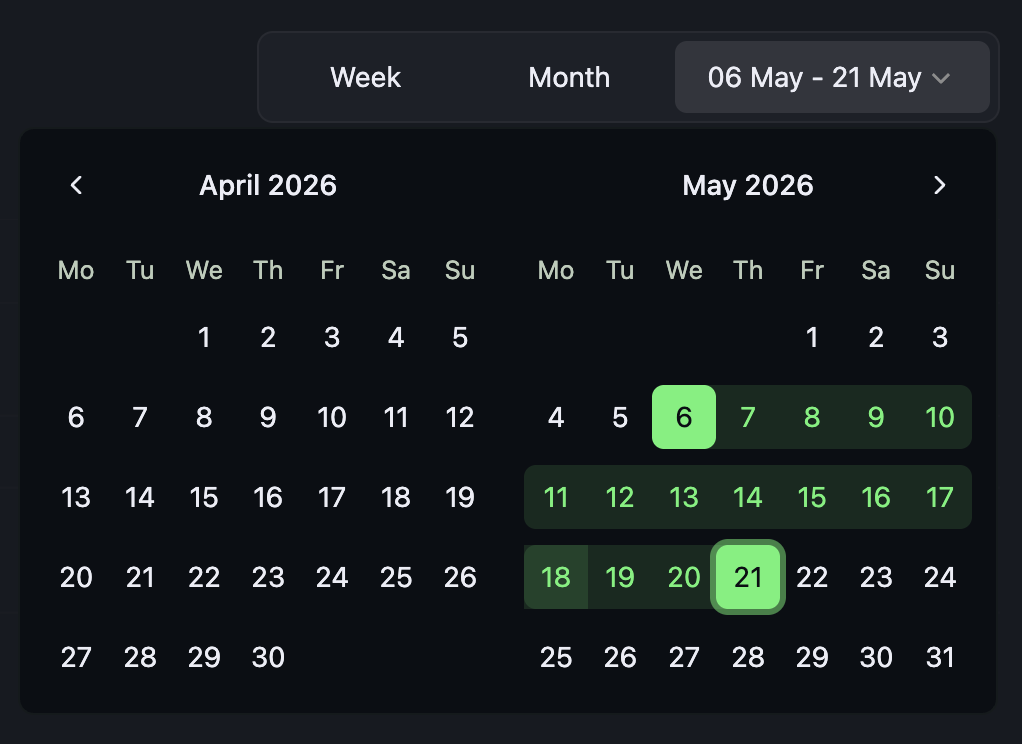
Filter the view by selecting a date range — preset options like Week or Month, or a custom range for a specific period.
Individual User Data
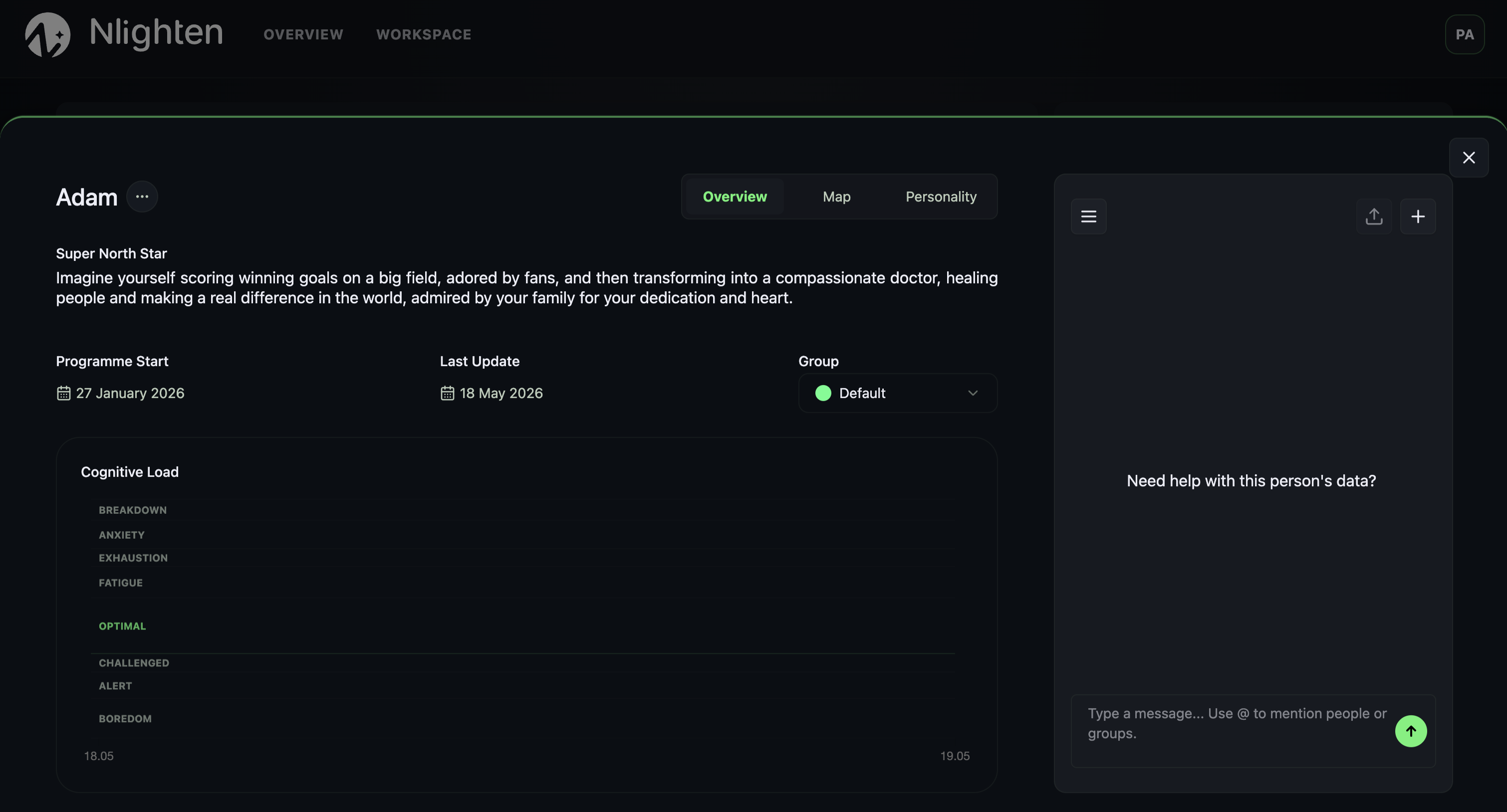
A detailed view of the selected user and their progress, designed to help you understand each person's goals, journey and personality.
Overview
Displays the user's Super North Star alongside their current cognitive load — the long-term direction and the short-term state, side by side.
Map
A breakdown of the user's journey and the steps they are taking to move toward their Super North Star.
Personality
The user's personality profile, including OCEAN scores and motivational drivers — useful context for every decision you make about them.
Workspace
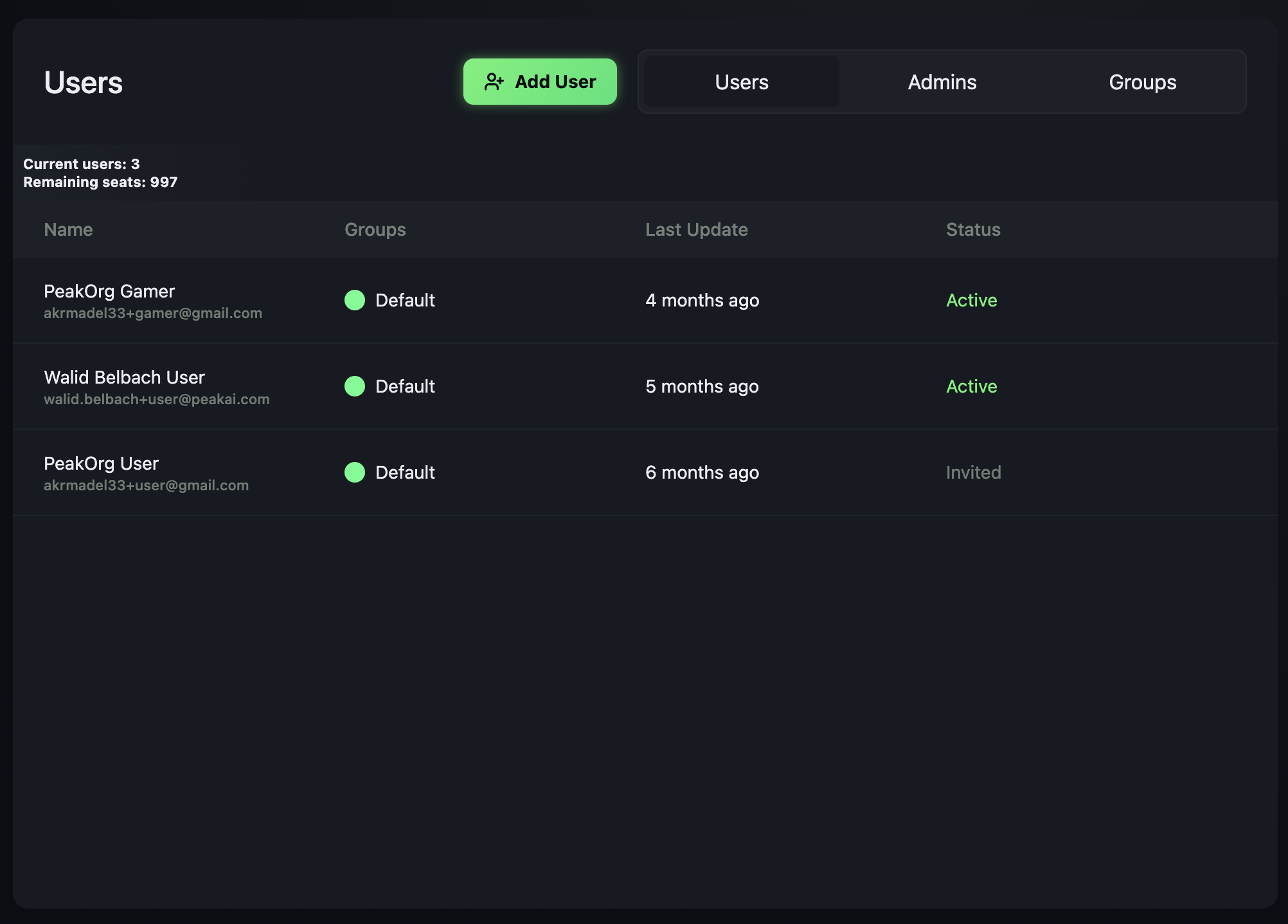
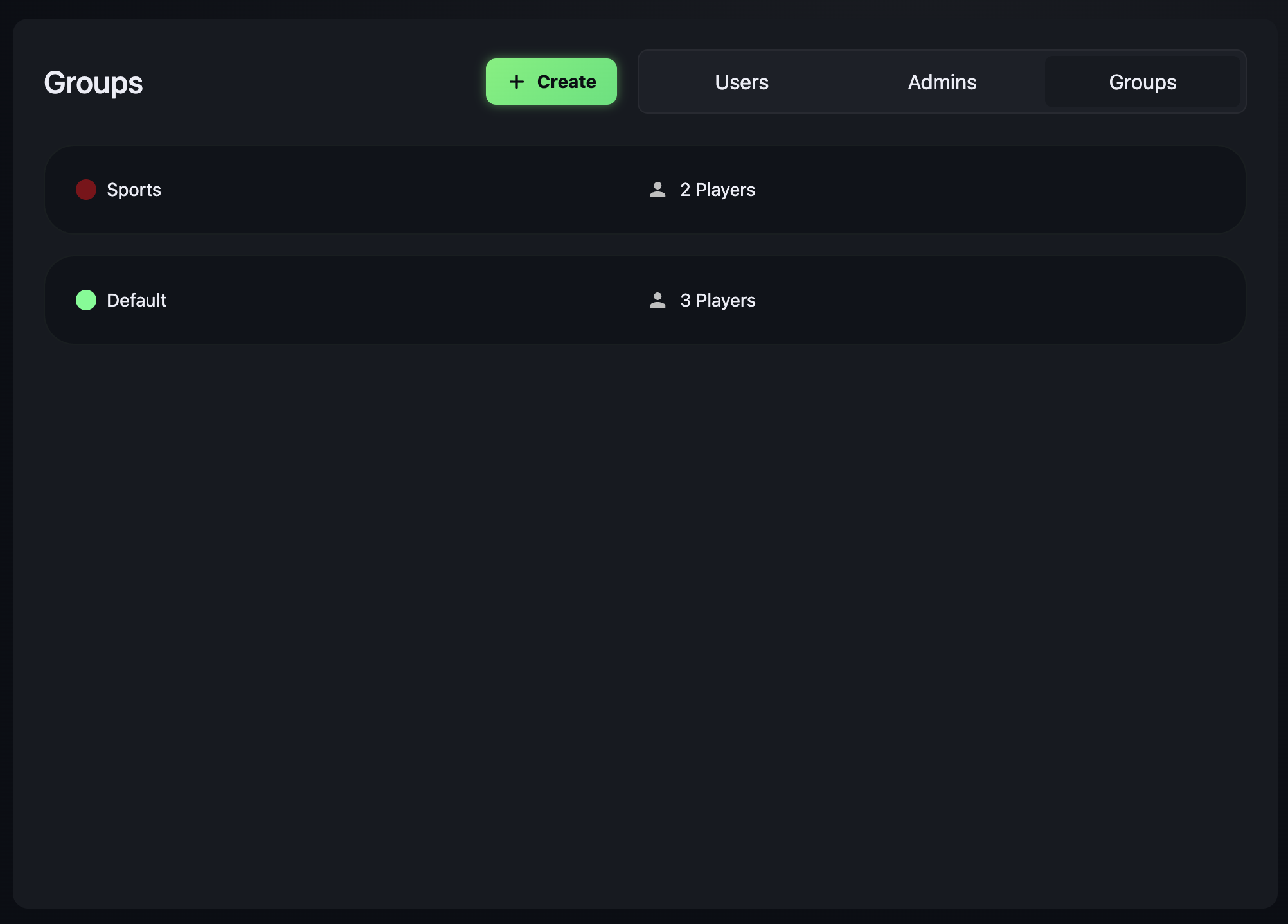
View and manage all users, admins and groups in one place. From here, you can add new users, invite admins, and create or manage groups.
Once a user or admin has been invited and successfully logged in, their status appears as Active.
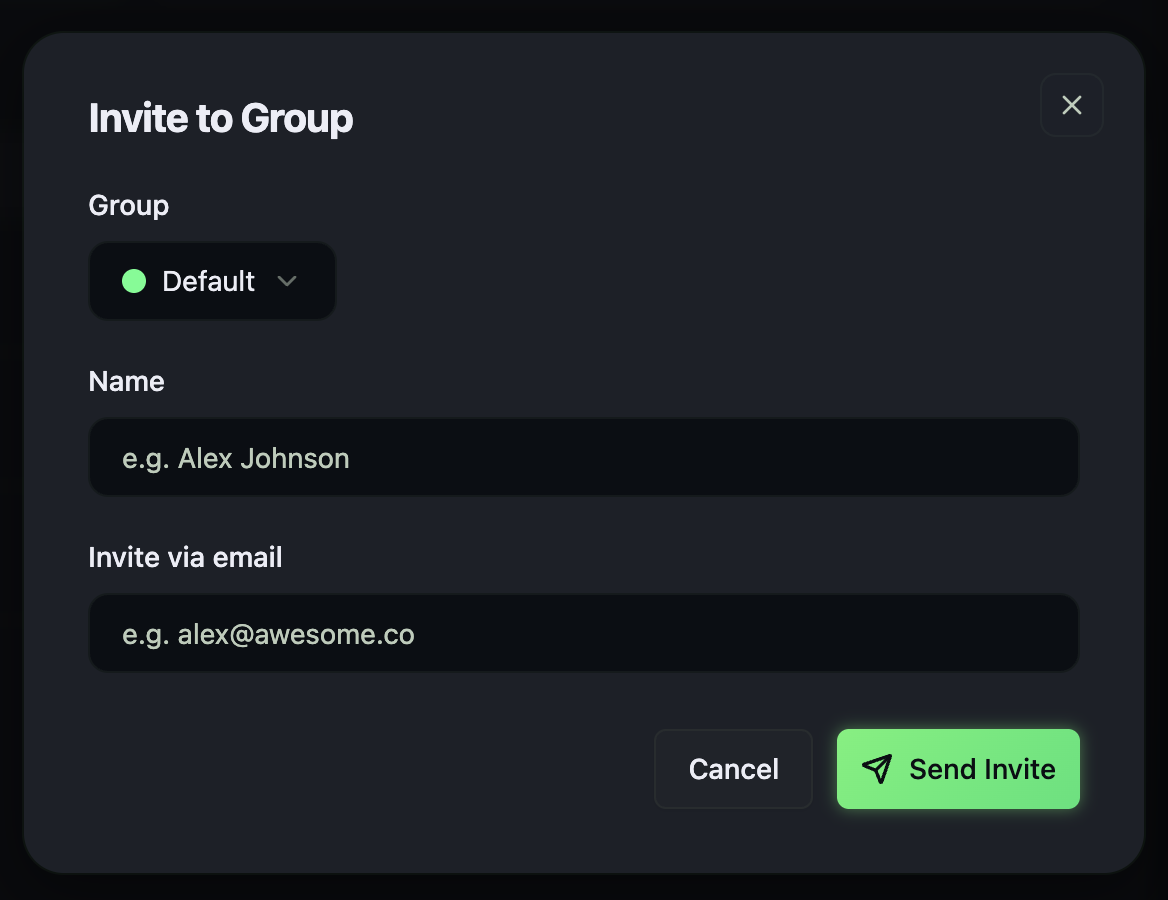
To add a user or admin, click the User / Admin icon and select Add User or Add Admin. A pop-up appears where you can enter their name and email address. The name you enter is how they appear in your Hub. Once submitted, they receive an email invitation containing their username and a temporary password.
Good to know
An invitation stays as Pending until the user signs in for the first time. After that, they switch to Active and start appearing in your overview bubbles, user data and Co-Pilot results.
Groups
Groups help you understand team dynamics and how users work together. They also let you use Co-Pilot to ask questions about both the group as a whole and the individuals within it.
For example, you might ask: "Who in @Product Pod would be best suited to lead a project and keep the team motivated?" or "Would @Daniel work well with @Growth Squad?"
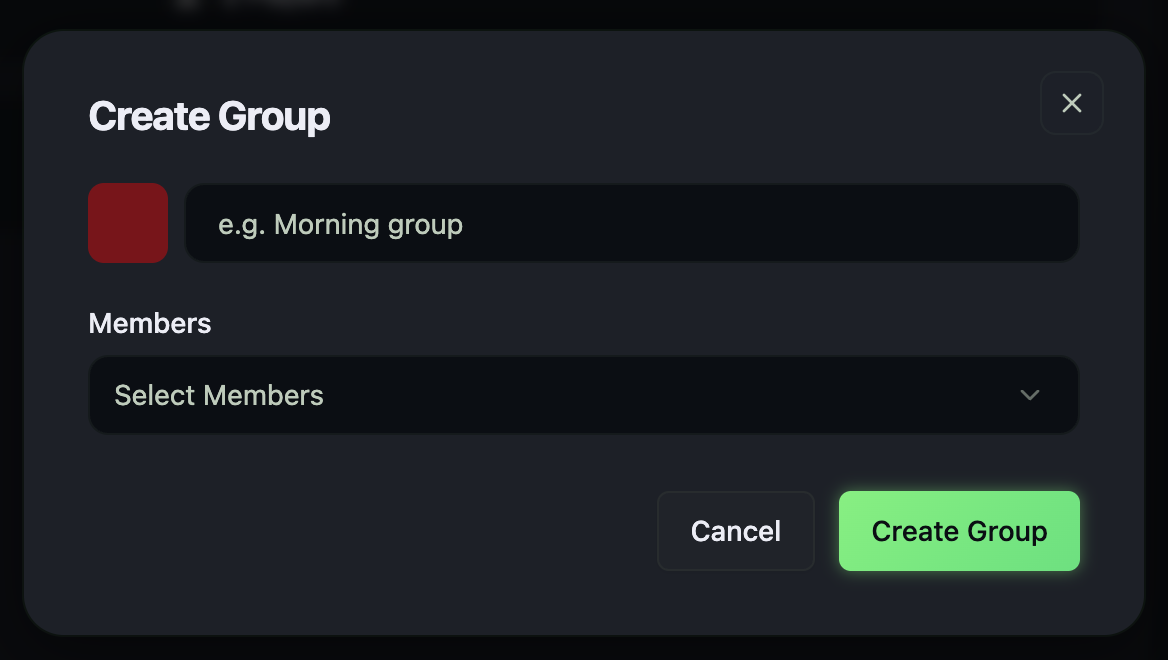
To create a group, click + Create, enter a group name, and select the users you would like to include from your user list.
Co-Pilot
Co-Pilot helps translate personality, motivations, ambitions and cognitive load into practical guidance you can use every day.
Rather than relying on raw data alone, you receive support in interpreting insights and turning them into better communication, stronger support strategies and more informed decisions.
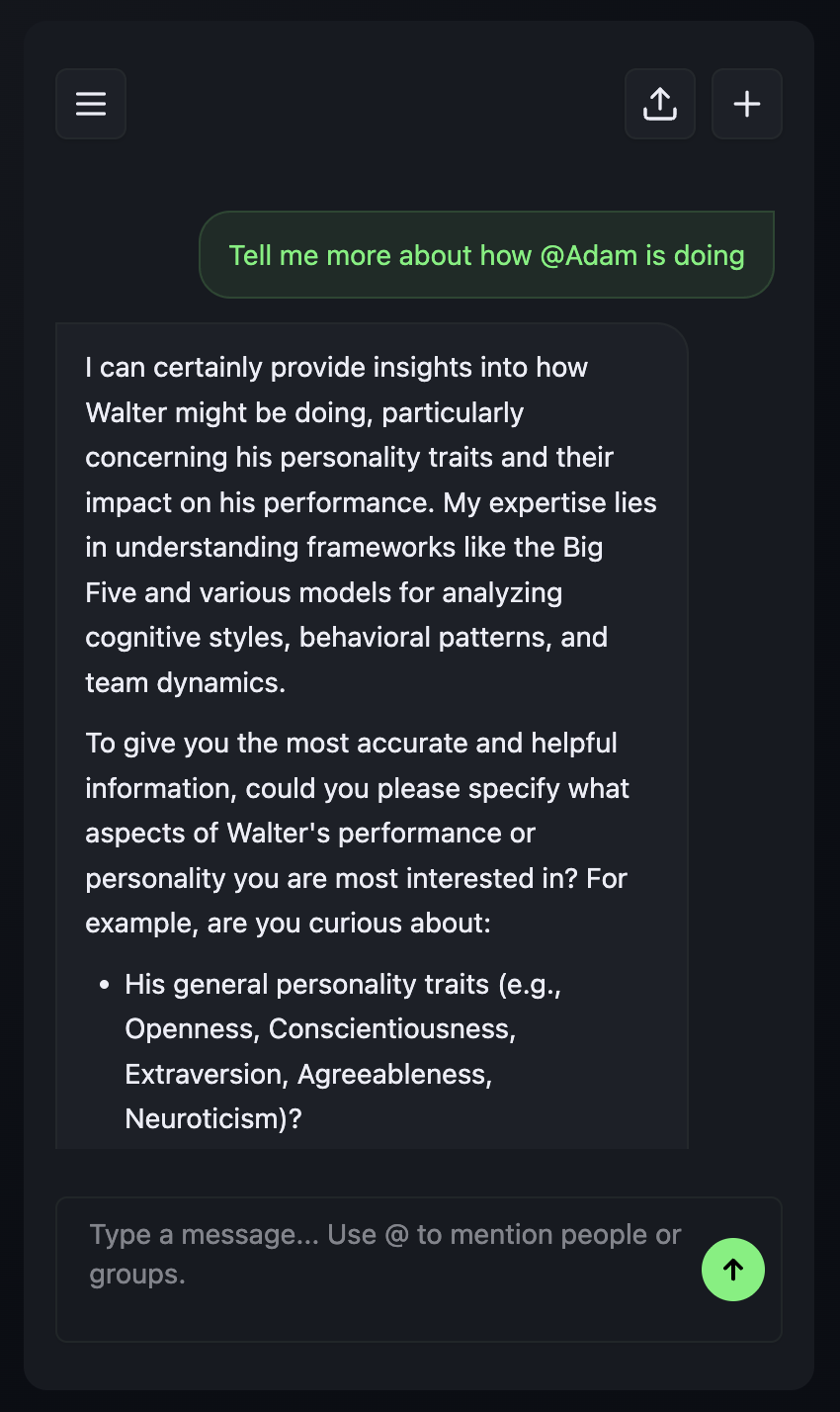
Co-Pilot is designed to help you better understand and support each person. Using each user's personality profile and behavioural insights, it provides personalised guidance tailored to their needs. The more context you provide, the more tailored and useful the guidance will be.
A few useful prompts
Reaching optimal state
"How can I help @user reach their optimal state based on their personality?"
Choosing a lead
"We have a large project — who out of @group would be best to lead?"
Pairing well
"Would @user work well with @group?"
Support strategy
"@user looks overloaded — what's the most useful way to support them this week?"
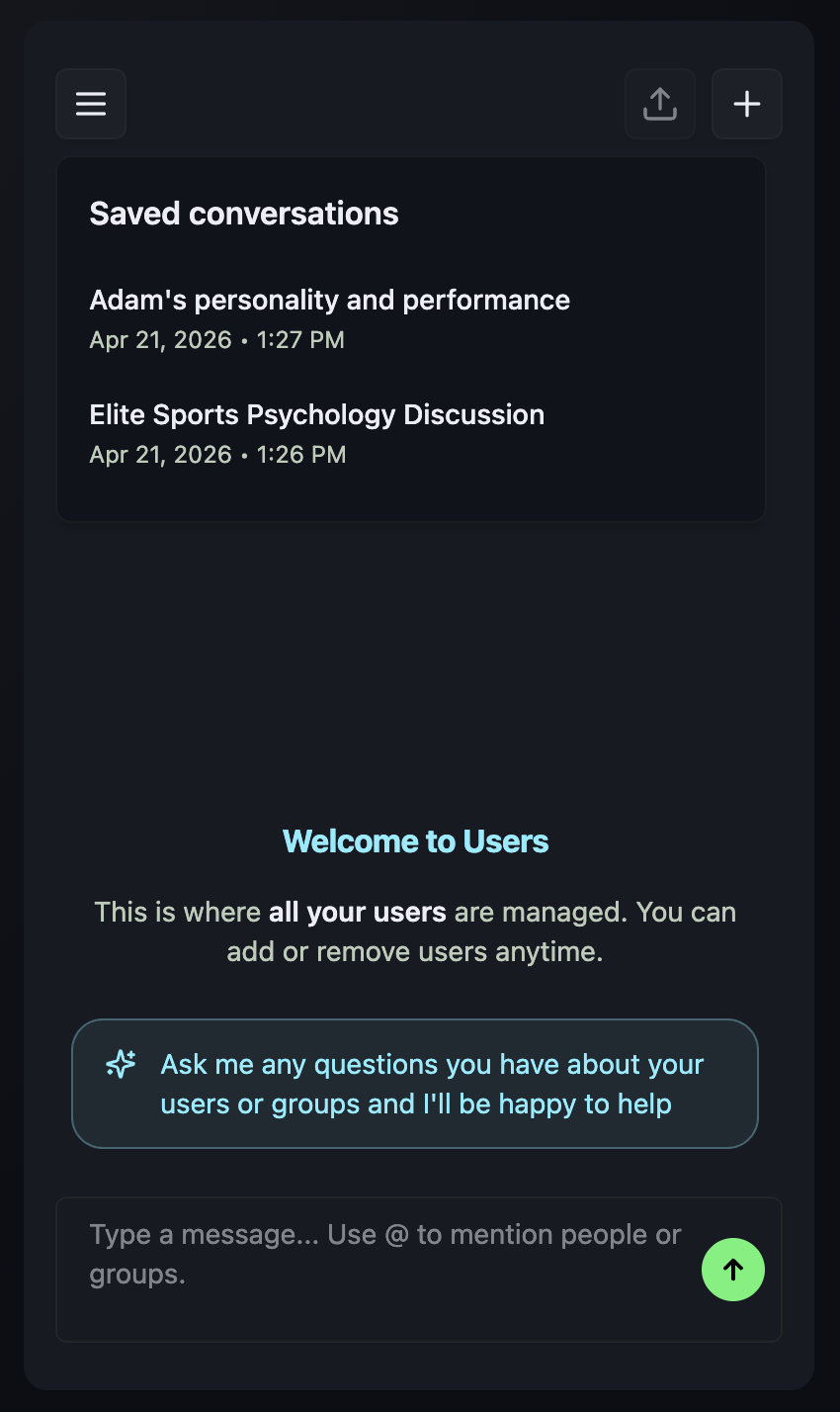
How to use the Co-Pilot controls
- The menu icon opens your conversation history so you can revisit previous conversations.
- The download arrow exports the current conversation to your computer.
- The + icon starts a new conversation.
- When asking about a specific user or group, always begin with @ followed by their name so the right profile is referenced.
Ready to lead with insight.
You now have everything you need to sign in, read the dashboard, manage your team and use Co-Pilot with intent. Open the Hub and start a smarter conversation.
Back to top →